In this guide, we’ll go over how to fix Xbox Series X HDMI issues in simple, easy-to-follow steps. You’ll find practical tips, a summary table, and advice from trusted tech sources like technicles.com.
How to Fix Xbox Series X HDMI Issues: Easy Step-by-Step Guide
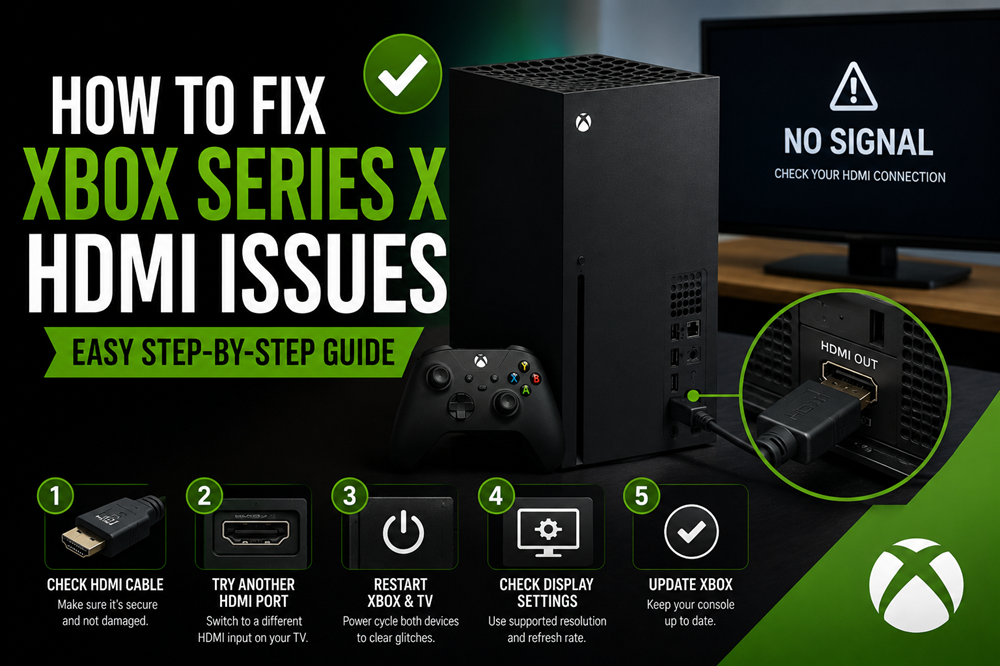
Table of Contents
Nothing feels worse than turning on your Xbox Series X and seeing a black screen. Maybe your TV says “No Signal.” Maybe the picture keeps flickering. Or maybe the screen works, but the sound is missing.The good news is that many Xbox Series X HDMI problems are easy to fix at home. You do not always need a repair shop right away. Sometimes, the issue is the HDMI cable, the TV port, the display setting, or a loose connection.
In this guide, you will learn simple step-by-step fixes for Xbox Series X HDMI issues. These steps are easy to follow, even if you are not very tech-savvy.
What Are Xbox Series X HDMI Issues?
HDMI issues happen when your console can’t properly send video or audio to your TV. Some signs that your Xbox has HDMI problems include:
- No picture on the TV screen
- Black screen during startup
- Flickering or distorted video
- Audio works but no video
- The screen randomly cuts out
Knowing the exact symptom will help you pick the right fix. Technicles.com has noted that most of these problems are caused by cables, ports, or settings, and are easy to fix at home.
Quick Troubleshooting Overview
Here’s a handy table that summarizes common HDMI problems, what causes them, and quick fixes:
| Symptom | Likely Cause | Quick Fix |
| No signal | Wrong TV input / loose HDMI cable | Check connections, select correct input |
| Flickering video | Damaged HDMI cable / faulty port | Replace HDMI cable, try a different port |
| Audio only | HDMI handshake problem | Power cycle Xbox and TV |
| Low resolution only | Wrong display settings | Boot in low-res mode, adjust settings |
| Random blackouts | Dust in port / loose connection | Clean HDMI port, secure cable |
| Blank screen after update | Outdated Xbox or TV software | Update firmware |
This table gives you a clear starting point before trying more detailed fixes.
Step 1: Check Your Connections
The first thing to do when learning how to fix Xbox Series X HDMI issues is to check your basic connections:
- Make sure your Xbox and TV are both turned on.
- Double-check that the TV is on the correct HDMI input.
- Plug the HDMI cable in firmly on both ends.
Often, a loose cable or incorrect input is the simple culprit behind a blank screen.
Step 2: Check or Replace Your HDMI Cable
A lot of HDMI problems are caused by a bad cable. Even if it looks fine, it might not be working properly.
- Try using the official Xbox Series X HDMI cable.
- Avoid old or cheap third-party cables that don’t support 4K or HDR.
- If the cable looks damaged or worn, replace it.
Sometimes just swapping the cable fixes the issue completely.
Step 3: Try a Different HDMI Port
Not all HDMI ports on a TV are the same. Some may not support 4K or high refresh rates.
- Plug the HDMI cable into a different port.
- Look for ports labeled 4K, HDR, or HDMI 2.0/2.1.
If it works in a different port, the original port may be the problem.
Step 4: Power Cycle Your Xbox and TV
A simple power cycle can solve many HDMI problems.
- Turn off your Xbox completely (hold the Xbox button for 10 seconds).
- Unplug the power cords from both the Xbox and TV.
- Wait about 1–2 minutes.
- Plug everything back in and turn your devices on.
This resets the connection between your Xbox and TV, which often fixes flickering or no-signal issues.
Step 5: Boot Your Xbox in Low Resolution Mode
If your screen is still black, try starting the Xbox in low-resolution mode.
- Turn off the console.
- Hold Power + Eject until you hear two beeps.
- Xbox will boot in low-resolution mode.
- Go to Settings > General > TV & display options and choose a compatible resolution (like 1080p).
Once the video is visible, you can adjust the resolution to match your TV’s capabilities.
Step 6: Update Your Xbox and TV Software
Sometimes outdated software can cause HDMI problems.
- On your Xbox, go to Settings > System > Updates and install any updates.
- On your TV, check the settings menu or the manufacturer’s website for firmware updates.
Keeping both devices updated ensures they work together smoothly. Many tech blogs, including technicles.com, recommend regular updates to avoid display issues.
Step 7: Adjust Display Settings
Some HDMI problems happen because the console is outputting a resolution your TV can’t handle.
- Go to Settings > General > TV & display options.
- Try lowering the resolution to 1080p if 4K isn’t working.
- Turn off Auto HDR or Variable Refresh Rate (VRR) if your TV doesn’t support them.
This simple step often fixes black screens or flickering.
Step 8: Clean HDMI Port and Cable Ends
Dust can stop the HDMI signal from transmitting properly.
- Power off and unplug both devices.
- Use compressed air to blow out the port gently.
- Wipe the HDMI cable ends with a soft, dry cloth.
Never use sharp objects in the port, as this can damage it.
Step 9: Test on Another TV or Monitor
To figure out whether the problem is with your Xbox or TV:
- Connect the Xbox to another TV or monitor.
- If it works on a different screen, the original TV or HDMI port may be the issue.
- If it still doesn’t work, the problem is likely with the Xbox HDMI port.
When Should You Get Professional Help?
You should consider professional repair if the HDMI port is loose, broken, or physically damaged. You may also need help if the console shows no signal on multiple TVs with multiple HDMI cables.Do not try to open the Xbox Series X unless you know what you are doing. Opening the console can cause more damage and may affect warranty options.
FAQs
Why does my Xbox Series X say no signal?
It may be caused by a loose HDMI cable, wrong TV input, bad HDMI cable, unsupported display setting, or damaged HDMI port.
Can a bad HDMI cable cause a black screen?
Yes. A damaged or low-quality HDMI cable can cause black screens, flickering, no signal, or missing sound.
How do I reset Xbox Series X display settings?
Turn off the console. Then hold the power button and pair button together until you hear a second beep. This starts the console in low-resolution mode.

Bernard Marr
Bernard Marr is a best-selling author, keynote speaker, and futurist specializing in big data, AI, analytics, digital transformation, and strategic tech adoption for businesses. With decades advising CXOs and companies on data-driven decisions, he writes accessible yet insightful pieces on blockchain, fintech innovations, cloud strategies, IoT ecosystems, and the future of work/tech in industries like finance, health, and smart cities.
Subscribe to Our Newsletter
Keep in touch with our news & offers